A technical guide to create the first function in AWS Lambda using Amazon Web Service console.
Runtime Options in AWS Lambda
When creating a function in Amazon Web Services Lambda, the first step is choosing the runtime. If you select an interpreted language such as Python or Node.js, you can write and edit your function code directly in the Lambda console using the built-in code editor. This approach is ideal for quick setup, testing, and small workloads because it removes the need for local packaging.
However, if you use a compiled language like Java or C#, the process requires an additional step. You must build your application on your local machine, create a deployment package, and then upload that package to Lambda before the function can run.
Sign Up for an AWS Account
If you do not have an AWS account, complete the following steps to create one.
To sign up for an AWS account:
- Open https://portal.aws.amazon.com/billing/signup
- Follow the online instructions.
Part of the sign-up procedure involves receiving a phone call and entering a verification code on the phone keypad. When you sign up for an AWS account, an AWS account root user is created. The root user has access to all AWS services and resources in the account. As a security best practice, assign administrative access to a user, and use only the root user to perform tasks that require root user access.
AWS sends you a confirmation email after the sign-up process is complete. At any time, you can view your current account activity and manage your account by going to https://aws.amazon.com/ and choosing My Account.
Create a user with administrative access
After you sign up for an AWS account, secure your AWS account root user, enable AWS IAM Identity Center, and create an administrative user so that you don’t use the root user for everyday tasks.
Secure your AWS account root user
- Sign in to the AWS Management Consoleas the account owner by choosing Root user and entering your AWS account email address. On the next page, enter your password. For help signing in by using root user, see Signing in as the root user in the AWS Sign-In User Guide.
- Turn on multi-factor authentication (MFA) for your root user. For instructions, see Enable a virtual MFA device for your AWS account root user (console) in the IAM User Guide.
Sign in as the user with administrative access
To sign in with your IAM Identity Center user, use the sign-in URL that was sent to your email address when you created the IAM Identity Center user. For help signing in using an IAM Identity Center user, see Signing in to the AWS access portal in the AWS Sign-In User Guide.
Assign access to additional users
- In IAM Identity Center, create a permission set that follows the best practice of applying least-privilege permissions. For instructions, see Create a permission set in the AWS IAM Identity Center User Guide.
- Assign users to a group, and then assign single sign-on access to the group. For instructions, see Add groups in the AWS IAM Identity Center User Guide.
Create a Lambda Function with the Console
In this example, your function takes a JSON object containing two integer values labeled “length” and “width”. The function multiplies these values to calculate an area and returns this as a JSON string.
To create a Hello world Lambda function with the console
- Open the Functions page of the Lambda console.
- Choose Create function.
- Select Author from scratch.
- In the Basic information pane, for Function name, enter myLambdaFunction.
- For Runtime, choose either Node.js 24 or Python 3.14.
- Leave architecture set to x86_64, and then choose Create function.
In addition to a simple function that returns the message Hello from Lambda!, Lambda also creates an execution role for your function. An execution role is an AWS Identity and Access Management (IAM) role that grants a Lambda function permission to access AWS services and resources. For your function, the role that Lambda creates grants basic permissions to write to CloudWatch Logs. Use the console’s built-in code editor to replace the Hello world code that Lambda created with your own function code.
To modify the code in the console using Node.js
1. Choose the Code tab
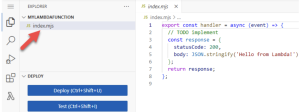
In the console’s built-in code editor, you should see the function code that Lambda created. If you don’t see the index.mjs tab in the code editor, select index.mjs in the file explorer as shown on the following diagram.
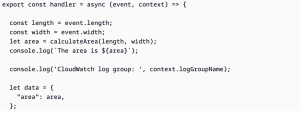
2. Paste the following code into the index.mjs tab, replacing the code that Lambda created.

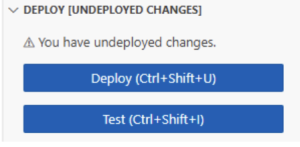
3. In the DEPLOY section, choose Deploy to update your function’s code:
To modify the code in the console using Python
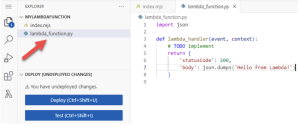
1. Choose the Code tab.
In the console’s built-in code editor, you should see the function code that Lambda created. If you don’t see the lambda_function.py tab in the code editor, select lambda_function.py in the file explorer as shown on the following diagram.
2. Paste the following code into the lambda _ function.py tab, replacing the code that Lambda created.
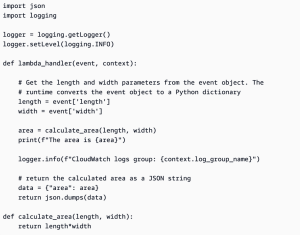
3. In the DEPLOY section, choose Deploy to update your function’s code:
Invoke the Lambda function using the console code editor
To invoke your function using the Lambda console code editor, create a test event to send to your function. The event is a JSON formatted document containing two key-value pairs with the keys “length” and “width”.
To create the test event
1. In the TEST EVENTS section of the console code editor, choose Create test event.
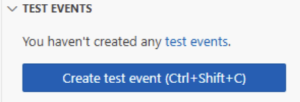
2. For Event Name, enter myTestEvent.
3. In the Event JSON section, replace the default JSON with the following:
{
Invoke the function 54
AWS Lambda Developer Guide
“length”: 6,
“width”: 7
}
4. Choose Save.
To test your function and view invocation records in the TEST EVENTS section of the console code editor, choose the run icon next to your test event:
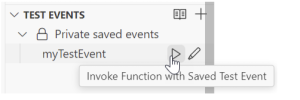
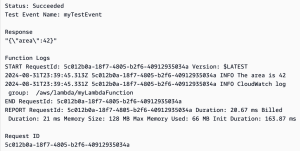
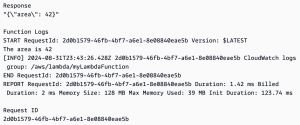
When your function finishes running, the response and function logs are displayed in the OUTPUT tab. You should see results similar to the following:
Node.js
Python

When you invoke your function outside of the Lambda console, you must use CloudWatch Logs to view your function’s execution results.
To view your function’s invocation records in CloudWatch Logs
- Open the Log groups page of the CloudWatch console.
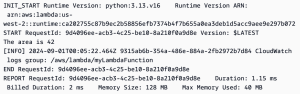
- Choose the log group for your function (/aws/lambda/myLambdaFunction). This is the log group name that your function printed to the console.
- Scroll down and choose the Log stream for the function invocations you want to look at.
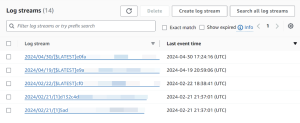
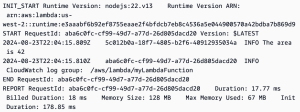
You should see output similar to the following:
Node.js
Pyhton
Clean up
When you’re finished working with the example function, delete it. You can also delete the log group that stores the function’s logs, and the execution role that the console created.
To delete the Lambda function
- Open the Functions page of the Lambda console.
- Select the function that you created.
- Choose Actions, Delete.
- Type confirm in the text input field and choose Delete.
To delete the log group
- Open the Log groups page of the CloudWatch console.
- Select the function’s log group (/aws/lambda/myLambdaFunction).
- Choose Actions, Delete log group(s).
- In the Delete log group(s) dialog box, choose Delete.
To delete the execution role
- Open the Roles page of the AWS Identity and Access Management (IAM) console.
- Select the function’s execution role (for example, myLambdaFunction-role-31exxmpl).
- Choose Delete.
- In the Delete role dialog box, enter the role name, and then choose Delete.
Credit to AWS Document.