
Mengolah dan menganalisis data dalam jumlah besar sering kali membutuhkan data warehouse yang andal. Namun dalam praktiknya, mengelola infrastruktur, melakukan scaling resource komputasi, serta memelihara cluster dapat menjadi proses yang cukup kompleks dan memakan waktu.
Untuk mengatasi tantangan tersebut, Amazon Redshift menghadirkan opsi serverless yang memungkinkan organisasi menjalankan analisis data tanpa perlu mengelola infrastruktur secara manual.
Dengan Amazon Redshift Serverless, Anda dapat menjalankan berbagai workload analitik tanpa harus melakukan provisioning server atau mengatur kapasitas komputasi. Seluruh kebutuhan infrastruktur, mulai dari pengelolaan resource hingga proses scaling, ditangani secara otomatis oleh AWS. Dengan demikian, tim data dapat lebih fokus pada proses analisis dan pengolahan data daripada pengelolaan sistem.
Secara umum, proses untuk mulai menggunakan Redshift Serverless cukup sederhana dan dapat dilakukan melalui beberapa langkah berikut:
- Membuat serverless data warehouse di Amazon Redshift
- Menghubungkan environment Redshift untuk mulai menjalankan query
- Memuat dataset contoh sebagai bahan eksplorasi data
- Menjalankan query untuk menganalisis dan memahami data
Melalui langkah-langkah tersebut, Anda dapat dengan cepat mulai mengeksplorasi kemampuan Amazon Redshift Serverless dalam mengolah dan menganalisis data secara efisien.
Membuat Akun AWS
Sebelum menggunakan Redshift, Anda perlu memiliki akun di Amazon Web Services.
Jika Anda belum memiliki akun AWS, lakukan langkah berikut untuk membuatnya:
Untuk mendaftar akun AWS:
- Buka https://portal.aws.amazon.com/billing/signup
- Ikuti petunjuk yang tersedia di layar.
Saat Anda membuat akun AWS, sistem otomatis membuat root user. Root user memiliki akses penuh ke semua layanan dan resource dalam akun. Sebagai praktik keamanan terbaik, berikan akses administratif kepada user lain, dan gunakan root user hanya untuk tugas yang memang memerlukan akses root.
Cara Membuat Data Warehouse Menggunakan Redshift Serverless
Setelah akun AWS Anda siap digunakan, langkah berikutnya adalah membuat environment data warehouse berbasis serverless di Amazon Redshift.
Untuk memulai, ikuti langkah-langkah berikut:
- Masuk ke AWS Management Console menggunakan akun Anda.
- Buka halaman Amazon Redshift Console melalui tautan berikut:
https://console.aws.amazon.com/redshiftv2/ - Pilih opsi Try Redshift Serverless Free Trial.
- Pada bagian konfigurasi, pilih Use default settings.
- Klik Save configuration untuk membuat environment serverless.
Dengan menggunakan pengaturan default, Amazon Redshift Serverless akan secara otomatis membuat komponen utama yang diperlukan untuk menjalankan data warehouse Anda.
Pengaturan default pada Amazon Redshift Serverless:
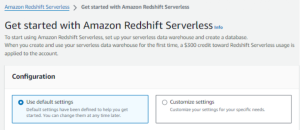
Saat Anda membuat konfigurasi serverless, AWS akan secara otomatis menyediakan dua komponen utama yang dibutuhkan untuk menjalankan data warehouse:
- Namespace – sebuah container logis yang menyimpan berbagai objek database, seperti schema, tabel, pengguna, dan snapshot.
- Workgroup – sekumpulan resource komputasi yang digunakan untuk menjalankan query serta memproses berbagai workload analitik.
Setelah proses konfigurasi selesai, namespace dan workgroup serverless Anda akan muncul di dashboard Amazon Redshift. Hal ini menandakan bahwa environment data warehouse telah siap digunakan untuk menjalankan query dan menganalisis data.
Membuat Contoh Dataset
Setelah environment data warehouse berhasil dibuat, langkah berikutnya adalah memuat data contoh agar Anda dapat mulai mencoba dan menjalankan berbagai query.
Proses ini dapat dilakukan melalui query interface yang sudah tersedia secara bawaan di Amazon Redshift.
Berikut langkahnya:
- Pada konsol Amazon Redshift, pilih opsi Query data untuk membuka Query Editor v2.
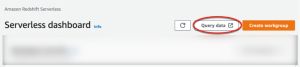
- Query Editor akan terbuka di tab browser baru.
- Setelah itu, hubungkan ke workgroup yang tersedia untuk mulai menjalankan query.
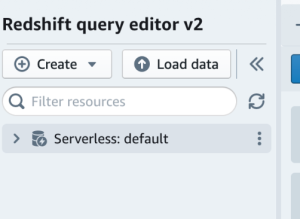
- Pilih metode autentikasi yang akan digunakan untuk mengakses environment.
- Buka atau perluas database bernama sample_data_dev.
- Pilih salah satu dataset yang tersedia, lalu buka sample notebook yang disediakan.
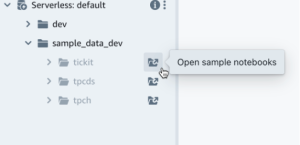
SQL notebook memungkinkan Anda mengatur beberapa perintah SQL beserta dokumentasinya dalam satu environment. Fitur ini membantu Anda menjalankan query secara bertahap sekaligus menyimpan catatan atau penjelasan terkait query tersebut dalam satu tempat.
Jika ini adalah pertama kalinya Anda memuat data contoh, sistem mungkin akan meminta Anda untuk membuat sample database terlebih dahulu sebelum melanjutkan proses berikutnya.
Menjalankan Query Contoh
Setelah dataset contoh berhasil dimuat, Anda dapat mulai mengeksplorasi data dengan menjalankan query di Amazon Redshift Serverless.
Melalui notebook Amazon Redshift Serverless, Anda dapat menjalankan beberapa query yang sudah disediakan secara otomatis untuk membantu memahami struktur dan isi data.
Langkah-langkahnya sebagai berikut:
- Buka sample queries yang tersedia di notebook.
- Klik Run all untuk menjalankan seluruh query.
- Hasil query akan langsung ditampilkan pada query editor, sehingga Anda dapat melihat dan menganalisis data secara langsung.
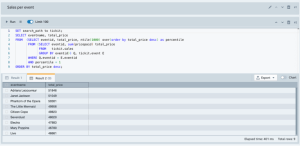
Query editor memungkinkan Anda melihat dan meninjau hasil query dengan beberapa cara. Misalnya, Anda dapat:
- Menampilkan hasil dalam format tabel
- Mengekspor hasil query sebagai file CSV atau JSON
- Memvisualisasikan data dalam bentuk grafik untuk memudahkan analisis
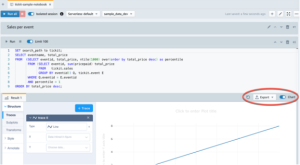
Hal ini memudahkan Anda dalam menganalisis dataset serta memahami pola atau insight yang terdapat di dalam data.
Memuat Data dari Amazon S3
Selain menggunakan dataset contoh, Anda juga dapat memuat data milik Anda sendiri ke dalam Amazon Redshift. Salah satu cara yang umum digunakan adalah dengan mengimpor file yang tersimpan di Amazon S3.
Untuk memuat data dari Amazon S3, lakukan langkah berikut:
- Buat IAM role yang memberikan izin kepada Amazon Redshift untuk mengakses bucket S3 Anda.
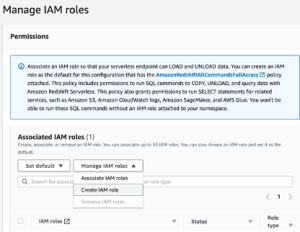
- Pilih tingkat akses S3 bucket yang ingin Anda berikan kepada role tersebut, lalu pilih Create IAM role as default.
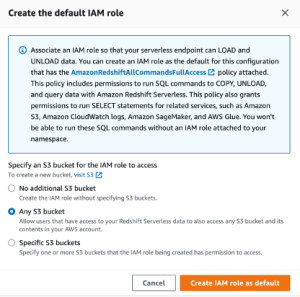
- Selanjutnya, klik Save changes. Setelah itu, Anda sudah dapat memuat data contoh dari Amazon S3 ke Amazon Redshift.
Langkah-langkah berikut menggunakan data yang tersedia pada public Amazon Redshift S3 bucket. Namun, Anda juga dapat menerapkan langkah yang sama menggunakan S3 bucket milik Anda sendiri dengan menjalankan perintah SQL yang sesuai.
Memuat data contoh dari Amazon S3
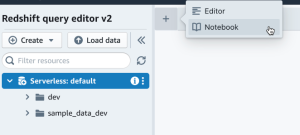
- Di Query Editor v2, pilih + Add, lalu pilih Notebook untuk membuat SQL notebook baru.
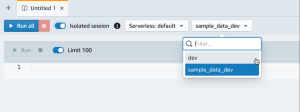
- Pindah ke database dev.
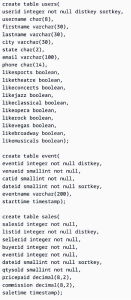
- Buat table.
Untuk mulai memuat data, Anda perlu membuat tabel terlebih dahulu. Jika menggunakan Query Editor v2, salin dan jalankan perintah CREATE TABLE untuk membuat tabel di dalam database dev.
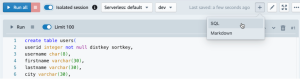
- Di dalam Query Editor v2, buat SQL cell baru pada notebook Anda, lalu jalankan perintah tersebut.
- Setelah tabel dibuat, Anda dapat menggunakan perintah COPY di Query Editor v2 untuk memuat dataset berukuran besar dari Amazon S3 atau Amazon DynamoDB ke Amazon Redshift.
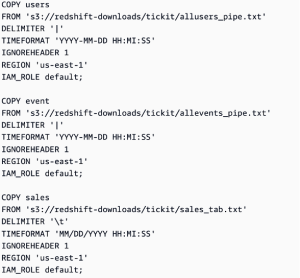
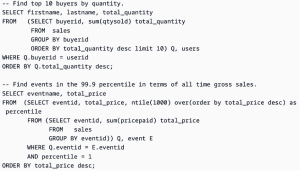
- Setelah data berhasil dimuat, buat SQL cell baru di notebook Anda dan jalankan beberapa query contoh untuk mulai mengeksplorasi data.
Credit to AWS Documentation